Research data and compute hardware are co-located at TACC. A ground-motion database in CommunityData can be referenced directly from a simulation job without downloading it to a laptop and re-uploading it. This co-location is one of DesignSafe’s most important advantages, but it means understanding where files live and how they move between environments.
Storage areas
All storage areas are browsable from one place, the Data Depot in the portal. The left sidebar mirrors the areas listed below, alongside connections to Box, Dropbox, and Google Drive for moving files in and out.
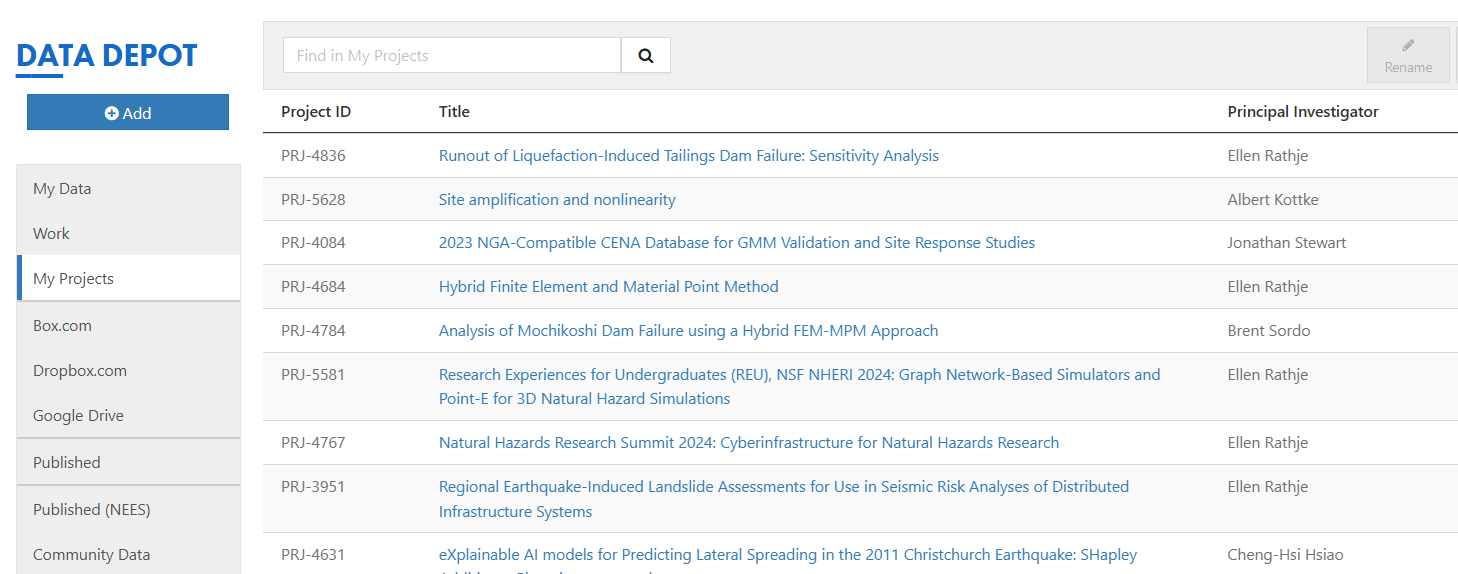
The Data Depot. Every storage area, plus cloud-storage connections, in one browser.
| Storage Area | Backed Up | Accessible From | Best For |
|---|---|---|---|
| MyData | Yes | Data Depot, JupyterHub, VMs, Tapis | Personal files: scripts, inputs, outputs |
| MyProjects | Yes | Data Depot, JupyterHub, VMs, Tapis | Team collaboration, curation, publication |
| CommunityData | Yes | Data Depot, JupyterHub, VMs, Tapis | Public shared datasets (read-only) |
| NHERI-Published | Yes | Data Depot, JupyterHub, VMs, Tapis | Archived NHERI datasets with DOIs (read-only) |
| NEES | Yes | Data Depot, JupyterHub, VMs, Tapis | Legacy NEES datasets (read-only) |
| Work | No | Compute nodes, JupyterHub, Data Depot | Active HPC job I/O, staging large inputs |
| Scratch | No (purged) | Compute nodes only | Temporary high-speed storage during jobs |
Corral: the persistent data hub
MyData, MyProjects, CommunityData, NHERI-Published, and NEES are directories with different access rules on one filesystem: Corral, TACC’s backed-up networked storage. Corral is the backbone of DesignSafe data management — every environment (Data Depot, JupyterHub, VMs, and Tapis jobs) sees the same files, which is what lets a dataset be prepared in a notebook, consumed by an HPC job, and published without ever leaving the platform.
Sharing model. MyData is private to you. MyProjects is shared with your project team. CommunityData, NHERI-Published, and NEES are public and read-only.
The path to publication. Data in MyProjects can be curated and promoted into a published dataset with a DOI — Corral is where DesignSafe’s curation and publication pipeline operates. If results may eventually be published or cited, keep them in MyProjects rather than MyData.
Performance. Network-mounted, so I/O is moderate — right for preparing inputs, archiving results, and collaboration; wrong for active job I/O. Never run HPC jobs directly against Corral; stage to Work or Scratch instead.
Corral’s system details and quotas are maintained in the TACC Corral guide.
Work and Scratch: the compute-side filesystems
Work and Scratch live on Lustre, a parallel filesystem that stripes files across many disks simultaneously. This makes large reads and writes significantly faster than Corral. Work and Scratch are not backed up. Use them for staging large inputs and holding outputs temporarily. Always copy important results back to MyData or MyProjects. The performance difference is especially noticeable for jobs that read or write many files, or that perform frequent I/O during execution.
Node-local storage (/tmp) on each compute node is the fastest option but files disappear when the job ends. Use it for scratch I/O during computation. See Running HPC Jobs for details on /tmp sizes and usage patterns.
Prepare in Corral (MyData/MyProjects)
    → Stage to Work for large datasets
    → Run jobs (use /tmp for scratch I/O)
    → Archive results back to Corral
Sharing files in My Projects
A file that arrives in a project through Tapis (the portal, dapi, or job archiving) is readable by every member. A file copied in from a login-node terminal often is not. scp and plain cp preserve the source file’s mode, which caps members at read-only or locks them out entirely, while mv, cp -p, and rsync -a strip member access altogether. Underneath, each project file has a POSIX access control list, with one named entry per member and a mask that caps what those entries grant; Tapis writes these correctly, and the terminal tools do not.
Two rules prevent it. Transfer into projects through Tapis, or finish command-line copies with chmod -R g+rwX on the destination. Never mv, cp -p, or rsync -a into a project.
When it has already happened, dapi diagnoses and repairs it from any machine:
ds.projects.permissions("PRJ-1234", "/results/run1.out")   # who can actually see it
ds.projects.fix_permissions("PRJ-1234")                    # repair what is repairable
The dapi projects documentation explains the audit columns and the repair strategies.
Paths across environments
The same storage area appears at different paths depending on the environment.
JupyterHub paths
| Data Depot Section | JupyterHub Directory | Path |
|---|---|---|
| My Data | MyData | /home/jupyter/MyData/ |
| My Projects | MyProjects | /home/jupyter/MyProjects/PRJ-XXXX/ |
| Community Data | CommunityData | /home/jupyter/CommunityData/ |
| Published | NHERI-Published | /home/jupyter/NHERI-Published/PRJ-XXXX/ |
| Published (NEES) | NEES | /home/jupyter/NEES/ |
| Work | Work | /home/jupyter/Work/stampede3/ (HPC Native sessions only) |
HPC system paths
Each TACC system has its own $HOME and $SCRATCH filesystems. Only $WORK (the Stockyard global shared filesystem) is accessible across systems. The $WORK path includes the system name as a subdirectory.
Always use the environment variables ($HOME, $WORK, $SCRATCH) rather than hardcoded paths, since the underlying mount points can change. The examples below show typical paths, but echo $WORK will always give the correct current path.
| System | Storage Area | Typical Path | Environment Variable |
|---|---|---|---|
| Stampede3 | Home | /home1/<groupid>/<username>/ | $HOME |
| Stampede3 | Work | /work/<groupid>/<username>/stampede3/ | $WORK |
| Stampede3 | Scratch | /scratch/<groupid>/<username>/ | $SCRATCH |
| Frontera | Home | /home1/<groupid>/<username>/ | $HOME |
| Frontera | Work | /work/<groupid>/<username>/frontera/ | $WORK |
| Frontera | Scratch | use $SCRATCH (mount point varies) | $SCRATCH |
| Lonestar6 | Home | /home1/<groupid>/<username>/ | $HOME |
| Lonestar6 | Work | /work/<groupid>/<username>/ls6/ | $WORK |
| Lonestar6 | Scratch | /scratch/<groupid>/<username>/ | $SCRATCH |
What each environment can see
The storage areas are not all visible everywhere, and this explains most “where are my files?” confusion:
Corral areas (MyData, MyProjects, CommunityData, and the published collections) appear in the Data Depot, JupyterHub, VMs, and to Tapis.
Scratch exists only on the HPC system. It is not mounted in JupyterHub and never appears in the Data Depot. A job’s outputs on Scratch are invisible until the job archives them or you copy them to Work or MyData. (While a job runs, the portal shows a temporary execution-directory view — it is transient, not storage.)
Work is the bridge. It is the one filesystem mounted in JupyterHub (
~/Work/stampede3/), present on Stampede3 ($WORK), and reachable by Tapis — which is why staged inputs and datasets reused across jobs belong there.
Two practical rules follow. If a job “finished but produced nothing,” the outputs are sitting on Scratch — archive or copy them. If a path works in a notebook but fails in a job, it is a mount difference — inside anything that runs on HPC, use absolute paths and environment variables ($WORK, $SCRATCH), never /home/jupyter/....
Tapis job directory
When Tapis runs a job, all input files are staged into a single working directory on the compute system, available as $TAPIS_JOB_WORKDIR. Every compute node in a multi-node job can see the same staged files through the shared parallel filesystem — inputs are not copied separately to each node.
dapi path translation
dapi handles path translation automatically. Use DesignSafe paths (as seen in the Data Depot) and let dapi convert them to Tapis URIs:
from dapi import DSClient
ds = DSClient()

# Convert a DesignSafe path to a Tapis URI for job submission
input_uri = ds.files.to_uri("/MyData/opensees/site-response/")

# Convert back
path = ds.files.to_path(input_uri)
Common path mappings (dapi translates these automatically):
| DesignSafe Path | Tapis URI |
|---|---|
/MyData/folder/ | tapis://designsafe.storage.default/username/folder/ |
/projects/PRJ-XXXX/folder/ | tapis://project-<uuid>/folder/ |
/CommunityData/folder/ | tapis://designsafe.storage.community/folder/ |
For projects, dapi searches Tapis to resolve the PRJ number to the project’s UUID-based system ID (e.g., project-766bbc0e-a536-...).
NHERI-Published and NEES are read-only and not typically used as job inputs. Their Tapis system IDs are designsafe.storage.published and nees.public.
Work and Scratch on an HPC system are addressed through the execution system itself — for example tapis://stampede3/work2/<groupid>/<username>/stampede3/... or tapis://stampede3/scratch/<groupid>/<username>/.... Accessing them requires TMS credentials on the system, which dapi sets up automatically at login.
File operations with dapi
ds.files.list("/MyData/results/")
ds.files.upload("/MyData/inputs/", "local_file.csv")
ds.files.download("/MyData/results/output.csv", "local_output.csv")
File staging and transfer
When a job is submitted, Tapis automatically stages input files to the execution system before the job starts and archives output back to DesignSafe storage after completion. There is no manual file transfer step.
Bundle small files. A directory with 1,000 small CSV files transfers much slower than a single tar.gz archive. Bundle inputs before staging.
Keep shared data in Work. If multiple jobs reuse the same input data (e.g., 500 ground-motion records for a fragility study), keep it in Work to avoid re-staging for every submission.
Avoid running against Corral. Large datasets benefit from the higher I/O bandwidth of Work and Scratch. Running jobs directly against MyData (Corral) is slower and not recommended for production simulations.
For transferring data to and from DesignSafe using Globus, Cyberduck, or command-line tools (scp/rsync), see the DesignSafe Data Transfer Guide.