This page walks through creating a custom HPC application on DesignSafe. For background on what Tapis Apps are and how they work, see Tapis and Custom Apps.
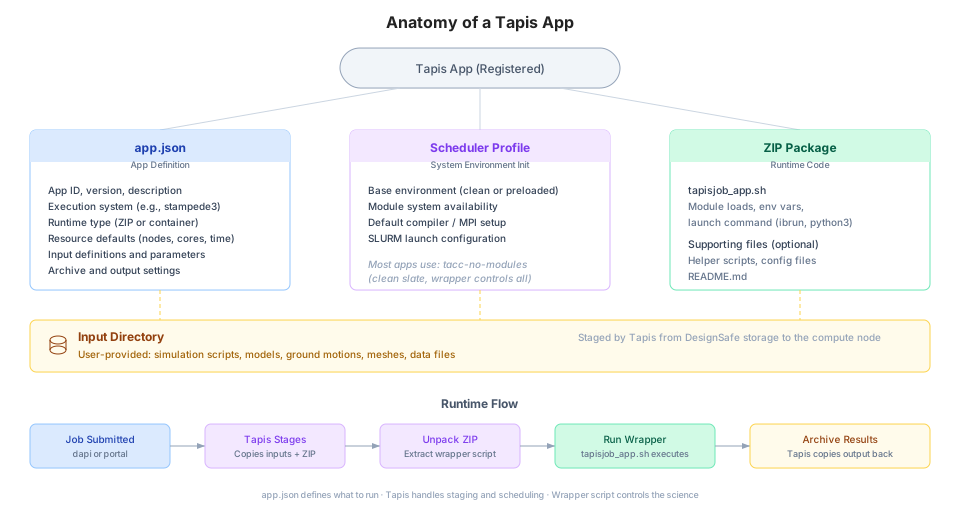
Custom Tapis Apps
On DesignSafe, you have two productive ways to run work on HPC systems.
Use a public Tapis App. These are pre-configured, maintained templates for common tools (e.g., OpenSees, OpenFOAM). Fastest path to results, minimal setup.
Author your own Tapis App. A custom template you control (wrapper + app.json, plus optional profile.json) when you need different binaries, launch logic, inputs/parameters, or project-specific defaults.
Start with a public app if your workflow fits its interface. Write a custom app when you need non-standard flags, containers/modules, pre/post steps, or a lab-specific interface you’ll reuse.
A. Use an Existing (Public) App
Public apps on DesignSafe are vetted templates for common tools. They’re the fastest path to results.
Where to find them
Web Portal, under Tools & Applications, to browse/search and read the app’s help page.
In notebooks/CLI, grab the app’s appId (and optional version) from the portal and submit jobs programmatically.
How to run effectively
Review the app’s inputs and parameters (from its schema).
Start with a small test case. Keep default resources, tune later.
Prefer stable/latest versions shown in the catalog.
Keep inputs on a Tapis-visible system (e.g., MyData, Work).
When public apps are ideal
Your workflow matches the app interface.
You want a supported, reproducible environment with minimal setup.
You don’t need custom launch logic or unusual dependencies.
B. Write Your Own App
Create a Tapis App when you need custom behavior, different software versions, or a specialized interface for your project.
Building blocks
Wrapper (tapisjob_app.sh). Non-interactive, writes outputs to the job working directory, handles launch (ibrun for MPI, direct execution otherwise) and logging.
app.json (required). App ID/version, runtime (ZIP for module-based apps), execution system and queue, resource defaults (nodeCount, coresPerNode, maxMinutes), file inputs, and parameters.
Scheduler profile (optional). Which modules TACC preloads before your wrapper runs; most custom apps use tacc-no-modules and load their own.
Tiny test dataset for validation.
Registration and sharing
Register via portal or API, then share with your project/team.
For catalog visibility, follow DesignSafe’s review/publication process.
Best practices
Version every change (e.g., 1.2.0). Keep a changelog. Avoid breaking users.
Use Tapis URIs and parameters. No hard-coded paths.
Set sensible defaults (resources, inputs) and document them.
Keep profiles minimal. Prefer containers or a short modules list.
Provide clear labels/descriptions so users don’t guess.
When custom apps shine
New binaries/flags, custom pre/post steps, lab-specific UI.
Automated parameter sweeps, ensembles, multi-stage workflows.
A reproducible template your group can reuse.
Quick Chooser
| Need | Public app | Your app |
|---|---|---|
| Fast start with a standard tool | Yes | |
| Custom binaries, flags, or launch logic | Yes | |
| Team-specific interface & defaults | Yes | |
| Minimal maintenance | Yes | |
| Full control / special dependencies | Yes |
Creating a Custom Tapis App
This tutorial builds a small custom app end to end. The app runs a Python script on Stampede3 using TACC’s environment modules (no containers), registered with Tapis v3 and launchable from both Python and the DesignSafe portal.
The finished product is a tutorial-scale version of the production python-s3 app documented in Python App. Before building a custom app, check whether python-s3 already covers your need. Its BINARY, PRE_SCRIPT, and POST_SCRIPT settings handle many cases that once required a new app.
Prerequisites
A DesignSafe account and a TACC allocation for test jobs
Basic knowledge of Python and shell scripting
A Python environment with dapi installed. dapi bundles Tapipy and exposes the authenticated client as
ds.tapis. DesignSafe JupyterHub works out of the box.
Step 1. Set Up Your App Directory
Structure your folder like this.
my-awesome-app/
├── tapisjob_app.sh       # Wrapper Tapis executes on the compute node
├── app.json              # Tapis v3 app definition
└── test/                 # Tiny input set for validation
    ├── run_analysis.py
    └── example_input.txt
The wrapper is the only file that ships inside the app. Science scripts and data arrive at run time through the app’s Input Directory, so users change them per job without touching the app.
Step 2. Your Python Code (run_analysis.py)
Example script. This lives in the input directory, not in the app.
import sys

if len(sys.argv) != 2:
    print("Usage: python run_analysis.py <input_file>")
    sys.exit(1)

with open(sys.argv[1], 'r') as f:
    content = f.read()

print("=== File Contents ===")
print(content)
Step 3. Wrapper Script (tapisjob_app.sh)
Tapis unpacks the app archive on the compute node and executes this script from the job working directory on $SCRATCH. App arguments arrive as positional shell arguments, and each file input’s envKey becomes an environment variable holding the staged path.
#!/bin/bash
set -euo pipefail

mainScript="$1"                 # First app argument, the script filename

module load python/3.12.11      # This app manages its own modules

cd "${inputDirectory}"          # envKey of the Input Directory file input

python3 "${mainScript}" example_input.txt
Make it executable before packaging.
chmod +x tapisjob_app.shExit nonzero on failure (set -e handles this). Tapis records the exit code and marks the job FAILED, which is what makes failures visible in the portal, in dapi, and to anyone debugging the job later.
Step 4. Tapis App Definition (app.json)
{
  "id": "my-awesome-app",
  "version": "1.0.0",
  "description": "Runs a Python analysis script on Stampede3",
  "runtime": "ZIP",
  "containerImage": "tapis://designsafe.storage.default/USERNAME/apps/my-awesome-app/app.zip",
  "jobType": "BATCH",
  "strictFileInputs": true,
  "jobAttributes": {
    "execSystemId": "stampede3",
    "execSystemExecDir": "${JobWorkingDir}",
    "execSystemInputDir": "${JobWorkingDir}",
    "execSystemOutputDir": "${JobWorkingDir}",
    "execSystemLogicalQueue": "skx-dev",
    "archiveSystemId": "designsafe.storage.default",
    "archiveSystemDir": "${EffectiveUserId}/tapis-jobs-archive/${JobCreateDate}/${JobName}-${JobUUID}",
    "archiveOnAppError": true,
    "nodeCount": 1,
    "coresPerNode": 1,
    "maxMinutes": 30,
    "fileInputs": [
      {
        "name": "Input Directory",
        "description": "Directory containing the main script and its input files",
        "inputMode": "REQUIRED",
        "envKey": "inputDirectory",
        "targetPath": "inputDirectory",
        "notes": { "selectionMode": "directory" }
      }
    ],
    "parameterSet": {
      "appArgs": [
        {
          "name": "Main Script",
          "description": "Filename of the Python script inside the Input Directory",
          "inputMode": "REQUIRED",
          "arg": null,
          "notes": { "inputType": "fileInput" }
        }
      ],
      "schedulerOptions": [
        {
          "name": "TACC Scheduler Profile",
          "description": "Load no modules; the wrapper loads its own",
          "inputMode": "FIXED",
          "arg": "--tapis-profile tacc-no-modules",
          "notes": { "isHidden": true }
        }
      ]
    }
  },
  "tags": ["custom", "python", "designsafe"]
}
Three fields deserve attention.
runtime: ZIPwith atapis://containerImageis the standard pattern for module-based (non-container) TACC apps. See app.json Reference for every field.The
--tapis-profile tacc-no-modulesscheduler option gives the wrapper a clean environment and full control over module loading (see Scheduler Profiles).skx-devis the right default queue while developing. Switch the default toskxonce the app works.
Step 5. Package and Upload the App
Zip the wrapper. This archive is what containerImage points at.
cd my-awesome-app
zip app.zip tapisjob_app.sh
Upload it to the containerImage location. Any Tapis storage you can write works, including MyData.
from dapi import DSClient

ds = DSClient()
ds.files.upload(
    "app.zip",
    "tapis://designsafe.storage.default/USERNAME/apps/my-awesome-app/app.zip",
)
The public production apps keep their archives on a system-managed path under tapis://cloud.data/corral/tacc/aci/CEP/applications/v3/. A personal path is fine for private and shared apps.
Step 6. Register the App
import json

with open("app.json") as f:
    app_def = json.load(f)

ds.tapis.apps.createAppVersion(**app_def)

# Verify
ds.tapis.apps.getApp(appId="my-awesome-app", appVersion="1.0.0")
The same call publishes later versions. Bump version in app.json and call it again; earlier versions stay runnable, which is what keeps old jobs reproducible. For a small fix to an existing version, patch it in place.
ds.tapis.apps.patchApp(
    appId="my-awesome-app",
    appVersion="1.0.0",
    containerImage="tapis://designsafe.storage.default/USERNAME/apps/my-awesome-app/app-fixed.zip",
)
Step 7. Share the App
Apps are private to their owner until shared. Shared users can read the definition and run jobs against it.
ds.tapis.apps.shareApp(appId="my-awesome-app", users=["collaborator-username"])Step 8. Submit a Test Job
Put the test/ folder somewhere Tapis can see it (MyData works), then use the standard dapi lifecycle.
input_uri = ds.files.to_uri("/MyData/my-awesome-app/test")

job_dict = ds.jobs.generate(
    app_id="my-awesome-app",
    input_dir_uri=input_uri,
    script_filename="run_analysis.py",
    max_minutes=10,
    allocation="YOUR_ALLOCATION",
)

submitted = ds.jobs.submit(job_dict)
final = submitted.monitor(interval=15)
ds.jobs.interpret_status(final, submitted.uuid)
Step 9. Inspect the Outputs
submitted.print_runtime_summary()
submitted.list_outputs()
print(submitted.get_output_content("tapisjob.out"))
Outputs archive to tapis-jobs-archive in MyData, the same location every DesignSafe app uses. If something failed, start with tapisjob.err and the debugging guide.
Step 10. Launch from the DesignSafe GUI
Every registered app has a portal workspace URL, even before it appears in any catalog.
https://www.designsafe-ci.org/workspace/my-awesome-app?appVersion=1.0.0Open the URL as the owner or as a user the app is shared with
Fill in the Input Directory and Main Script fields, plus allocation and resources
Submit. Tapis runs the job on Stampede3 and archives results to MyData
The Tools & Applications catalog itself is curated. To list an app there for the whole community, request it through the DesignSafe help desk.
Create an app with dapi
Writing app.json and a wrapper from scratch is the long road. dapi ships app templates. new() writes a working starting point in one call, and deploy() registers it under your account in a second.
ds.apps.templates()                                # ['container', 'zip']
ds.apps.new("my-app", template="zip")         # writes ./my-app/
ds.apps.deploy("./my-app")                         # registers it under your account
Choosing a template is choosing where the software stack lives.
container template | zip template | |
|---|---|---|
| The deployed app runs | any container image via apptainer | any shell command on the compute node |
| Software stack comes from | the image, baked in at build time | TACC modules plus whatever the wrapper sets up |
| Job parameters | CONTAINER_IMAGE, COMMAND | COMMAND, EXTRA_MODULES |
| Change the software | rebuild and push the image; the app never changes | edit the wrapper, run deploy() again |
| Reproducibility | the image tag or digest pins the whole stack | module versions can move underneath you |
| Startup overhead | image pull and SIF conversion at job start | none |
| Best for | tools with their own stack (gmprocess), code built off-site, exact repeatability | codes that live on TACC modules (OpenSees), binaries in $WORK, MPI launches via ibrun |
The zip template is the skeleton to edit into a fully custom app. The container template pairs with Containers on HPC, which covers building and publishing the images it runs.
The generated files, and what to edit
new() creates a directory with two files.
| File | What it is | What you edit |
|---|---|---|
app.json | The app definition Tapis registers. Everything a job form or ds.jobs.generate reads. | id and version (already set from your ds.apps.new call), execSystemId and execSystemLogicalQueue for the target system and queue, default nodeCount, coresPerNode, maxMinutes, and the envVariables list, one entry per parameter your wrapper reads. Leave containerImage alone; deploy() overwrites it with the uploaded zip path. |
tapisjob_app.sh | The wrapper SLURM executes on the compute node. Your launch logic. | The command section at the bottom. Staged inputs sit in ${_tapisExecSystemInputDir}/inputDirectory; the template cds there, so outputs written to the working directory are archived. Replace the single COMMAND line with module loads, ibrun launches, or pre/post steps as needed. |
Every field is documented on The app.json File and Wrapper Scripts.
The custom-app notebook runs the whole loop, create, edit, deploy, submit, results, with a live job. Rerunning deploy() with the same version updates the registered app in place, so the edit, deploy, submit loop is fast. Bump version in app.json when a change should not overwrite what collaborators already use, and share with ds.tapis.apps.shareApp.
Tips and Best Practices
The job working directory lives on
$SCRATCHand is archived, then purged. Anything the job should keep must be in the working directory when it ends.For MPI apps, launch with
ibruninside the wrapper and keepisMpi: false, the pattern the production OpenSeesMP app uses. Total ranks equalnodeCountxcoresPerNode, so they must match the model decomposition (see Running HPC Jobs).Keep the wrapper fail-fast (
set -euo pipefail) and echo key context (loaded modules, working directory, script name) sotapisjob.outtells the story when something breaks.Version every change and never mutate a published version’s archive. Registered versions should stay reproducible forever.
Read the python-s3 wrapper for a production-hardened example of all of these patterns, including pip installs, virtual environments, and pre/post hooks.