Code that runs on your laptop does not automatically run on Stampede3. The cluster offers a fixed set of software modules, and anything outside them, from your own research code to a full Python stack, has to be packaged before it can run there. A container is that package. It holds your application and every library it needs, so the same environment runs on your laptop and on a compute node.
Containers are not virtual machines
A virtual machine boots an entire guest operating system per instance, which costs minutes of startup and gigabytes of memory. A container shares the host kernel and packages only the libraries above it. Docker requires a root daemon, which shared clusters cannot allow, so TACC systems run containers through Apptainer (formerly Singularity). An apptainer container is an ordinary user process inside your SLURM job. It runs as your user id, needs no daemon, and reaches host filesystems through bind mounts.
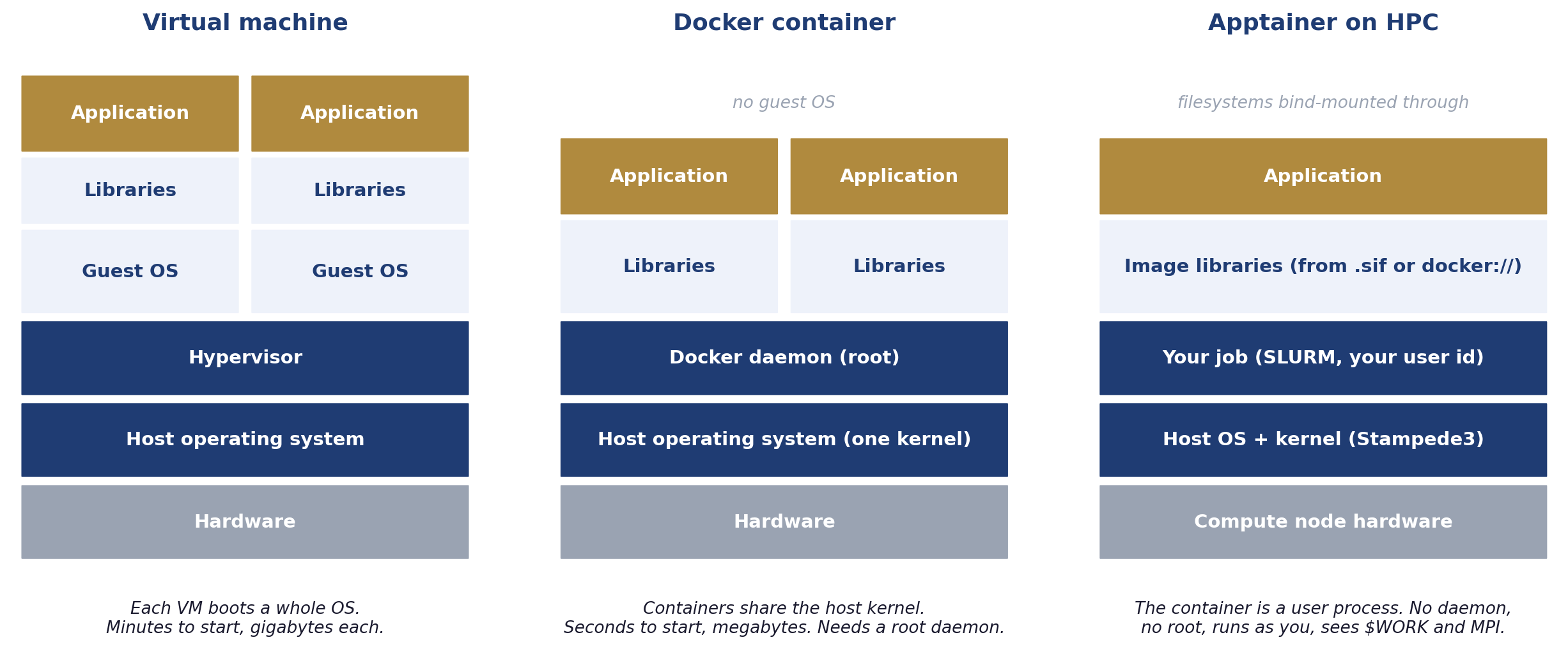
Virtual machines boot a guest OS per instance. Docker shares the kernel but needs a root daemon. Apptainer runs the container as a plain user process inside your job, which is why shared HPC systems allow it.
Step 1. Write the Dockerfile
Structure a small repository around the image.
site-response-container/
├── Dockerfile
├── requirements.txt              # Python dependencies, installed at build time
├── app/
│   └── site_response.py          # analysis code, baked into the image
└── .github/workflows/build-push.yml   # Step 3
FROM tacc/tacc-base:ubuntu22.04-impi19.0.9-common
COPY requirements.txt /opt/app/requirements.txt
RUN pip3 install --no-cache-dir -r /opt/app/requirements.txt
COPY app/ /opt/app/
CMD ["python3", "/opt/app/site_response.py"]Start from a TACC base image (docker.io/tacc/tacc-base tags cover Ubuntu 22.04, Ubuntu 20.04, and Rocky 8, with Intel MPI, MVAPICH, and CUDA variants) so the toolchain matches the systems; any base works for serial code. Code baked into the image is versioned with the image. Data and scripts that change per run belong in the job’s input directory instead, which arrives at run time.
Step 2. Build and test locally
Stampede3 is x86-64, so build for linux/amd64 explicitly (required on Apple Silicon, harmless elsewhere), and run the container before anything touches HPC. A container that fails here fails on the compute node too, and the local loop is seconds instead of a queue wait.
docker build --load --platform linux/amd64 -t site-response .
docker run --rm site-response
Step 3. Publish the image
Let GitHub build it. Pushing the repository triggers an Actions workflow that builds the image and publishes it to GitHub Container Registry with the automatic GITHUB_TOKEN, so no registry account or login exists anywhere in the loop. The python-container-s3 repository is a complete example to copy, workflow file included. After the first build, make the package public in the repository’s package settings, and the image is pullable by any compute node as
docker://ghcr.io/<owner>/<repo>:latestWhen an image should not be published, skip the registry. docker save produces a tarball that Tapis stages like any other job input; upload it once with dapi and jobs convert it on the node. The dapi containers page has the commands for both paths.
Step 4. Register a container app, once
dapi ships a generic container app as a template. new writes the app files, deploy registers the app under your account, and the image and command become job parameters, so this one app runs every image you ever build.
ds.apps.new("my-container", template="container")
ds.apps.deploy("./my-container")
This is the container counterpart of Building a Custom App; new writes the same two files (app.json, tapisjob_app.sh) for you, already filled in, and the custom-container-app notebook runs this registration and a job against it end to end. Registration is optional for one-off runs, since a short driver script inside a python-s3 job can call apptainer directly (the container-demo shows that form).
Step 5. Submit a job
job = {
    "name": "site-response",
    "appId": "my-container",
    "appVersion": "0.1.0",
    "execSystemLogicalQueue": "skx-dev",
    "nodeCount": 1, "coresPerNode": 1, "maxMinutes": 15,
    "fileInputs": [{"name": "Input Directory", "sourceUrl": inputs_uri}],
    "parameterSet": {
        "envVariables": [
            {"key": "CONTAINER_IMAGE",
             "value": "docker://ghcr.io/youruser/site-response:latest"},
            {"key": "COMMAND", "value": "python3 /opt/app/site_response.py"},
        ],
        "schedulerOptions": [{"name": "TACC Allocation", "arg": "-A MyAllocation"}],
    },
}
submitted = ds.jobs.submit(job)
submitted.monitor(interval=15)
CONTAINER_IMAGE accepts a docker:// reference, a staged .sif, or a staged docker save tarball. The job queues, stages, runs, and archives like any other Tapis job.
Step 6. Inspect the outputs
submitted.print_runtime_summary()
for item in ds.files.list(submitted.archive_uri + "/inputDirectory"):
    print(item.name)
tapisjob.out contains the apptainer log (image pull, conversion, your command’s stdout), which is the first place to look when a container job misbehaves.
Step 7. Share it
The image is already shareable; anyone can pull a public registry image. Share the app the same way any Tapis app is shared, and collaborators submit jobs against it with their own allocations.
ds.tapis.apps.shareApp(appId="my-container", users=["collaborator1"])What the container sees
The container’s filesystem is the image, read-only, plus whatever the host binds into it. This decides where code reads and writes.
| Path in the container | What it is on the node | Notes |
|---|---|---|
/data | the job’s staged input directory on Scratch | Bound by the app. The command starts here. Files written here are archived when the job ends. |
/opt/app (or wherever you COPY) | the image itself | Read-only. Rebuild the image to change it. |
/tmp | node-local disk | Fast scratch during the run, gone when the job ends. |
$HOME, $WORK, $SCRATCH | the host filesystems | Bound by TACC’s apptainer configuration; see the TACC containers guide. |
Two consequences matter. MyData and MyProjects live on Corral, which compute nodes do not mount, so the container cannot read them directly; Tapis stages inputs into the job directory before the container starts, which is why everything flows through the Input Directory. And anything written outside a bound path vanishes with the container, so results belong in /data (archived) or, for intermediates, /tmp (discarded).
The apps run containers with --cleanenv, which keeps the host environment out of the container. Parameters reach your code as command arguments or through files in /data, not through ambient environment variables, and that is what makes a containerized run repeatable.
Containers in workflows
A containerized job is an ordinary job, so it drops into a DAG workflow unchanged. A gmprocess study becomes a graph. One node fetches waveforms, parallel container nodes process record shards, and a final node aggregates a report. Each shard runs the published gmprocess image, and each node is sized to its own resources.