
JupyterHub Tools#
Integrated Tools in Jupyter Hub
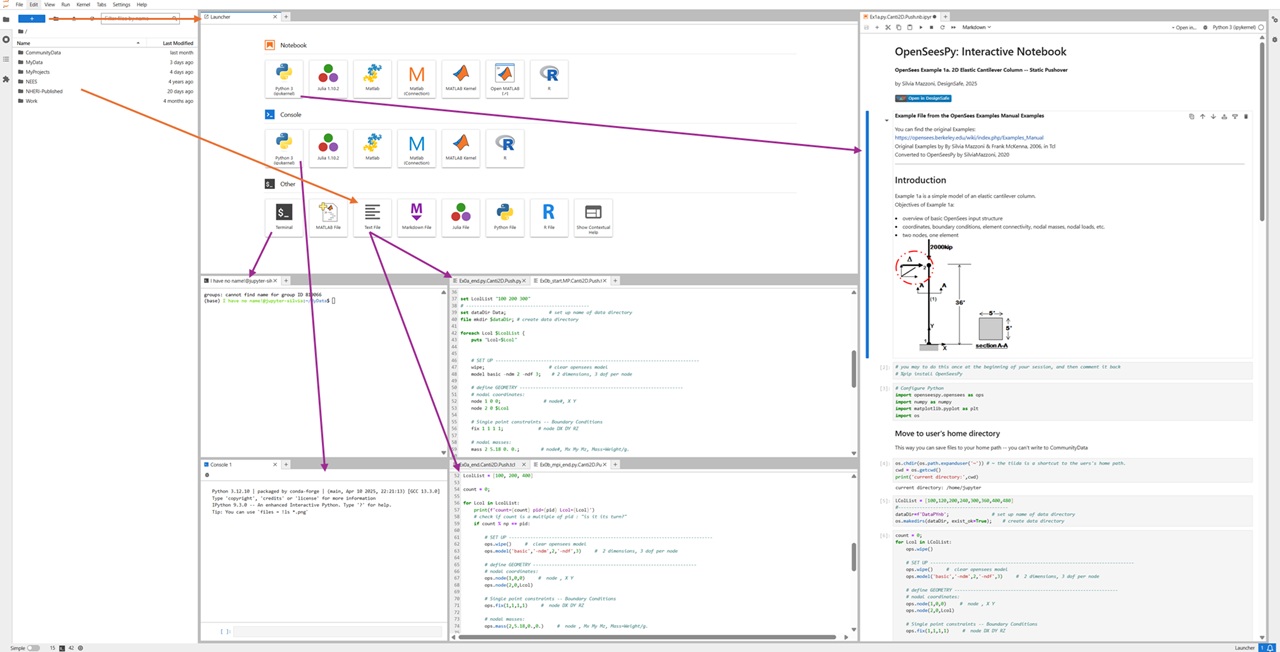
JupyterHub is a web-based Integrated Development Environment (IDE) that provides a unified workspace where you can manage every stage of your workflow—from editing scripts and running analyses to visualizing results—all from a single, browser-accessible dashboard, as shown in the figures below.
Each user session comes equipped with Notebooks, Consoles, Terminal Access, and text-file editors. Jupyter Hub supports Python like Julia, MATLAB, and R — useful for researchers integrating multi-language workflows.
You can click the “Open in DesignSafe” button to start a JupyterHub session – you will be asked to log in:

The tools can be accessed from the JupyterHub Launcher, shown in the figure below:
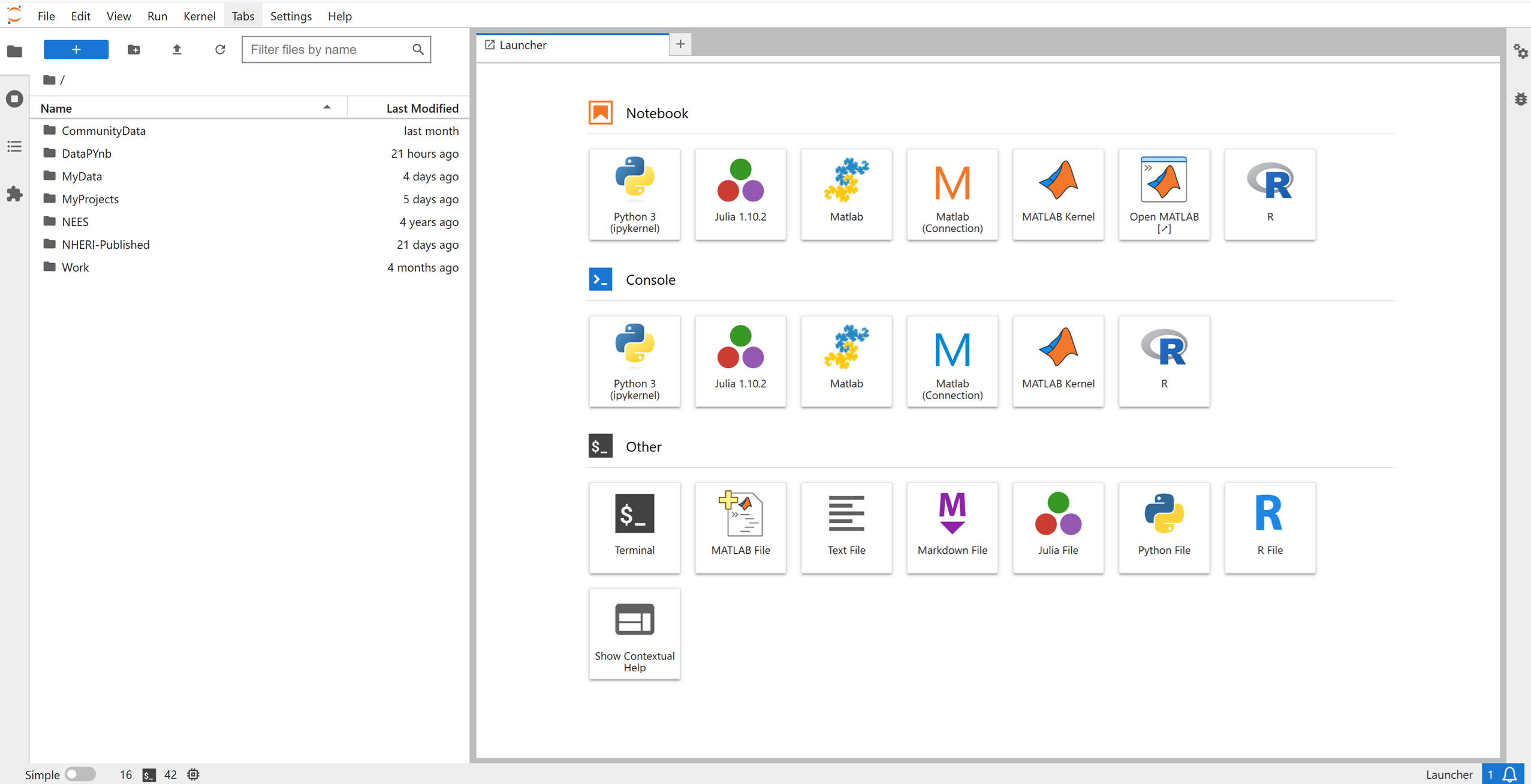 You can access the launcher by pressing the blue “+” on the top left of the Jupyter dashboard. You can launch any item by double-clicking on it.
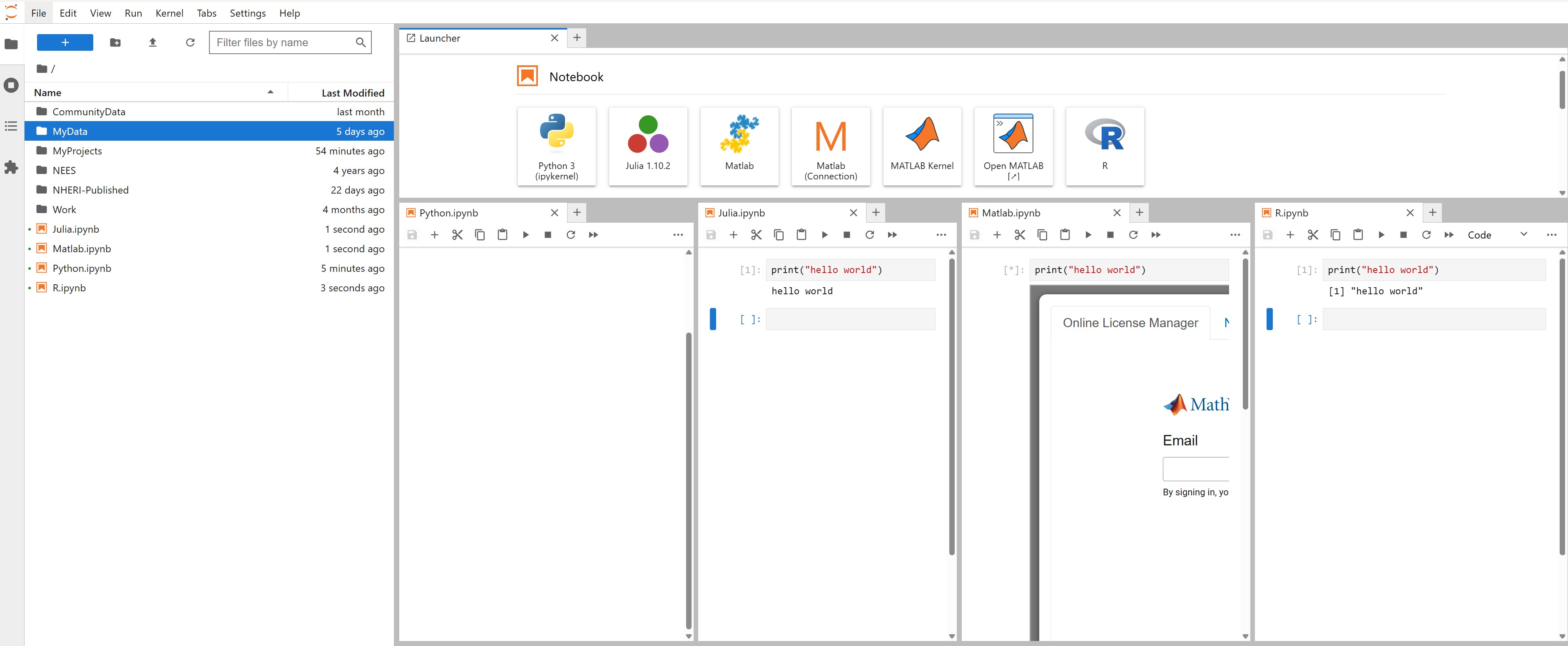
As shown in the figures at the bottom of this page: You can have multiple items open symultaneously. You can arrange them as windows or as tabs.
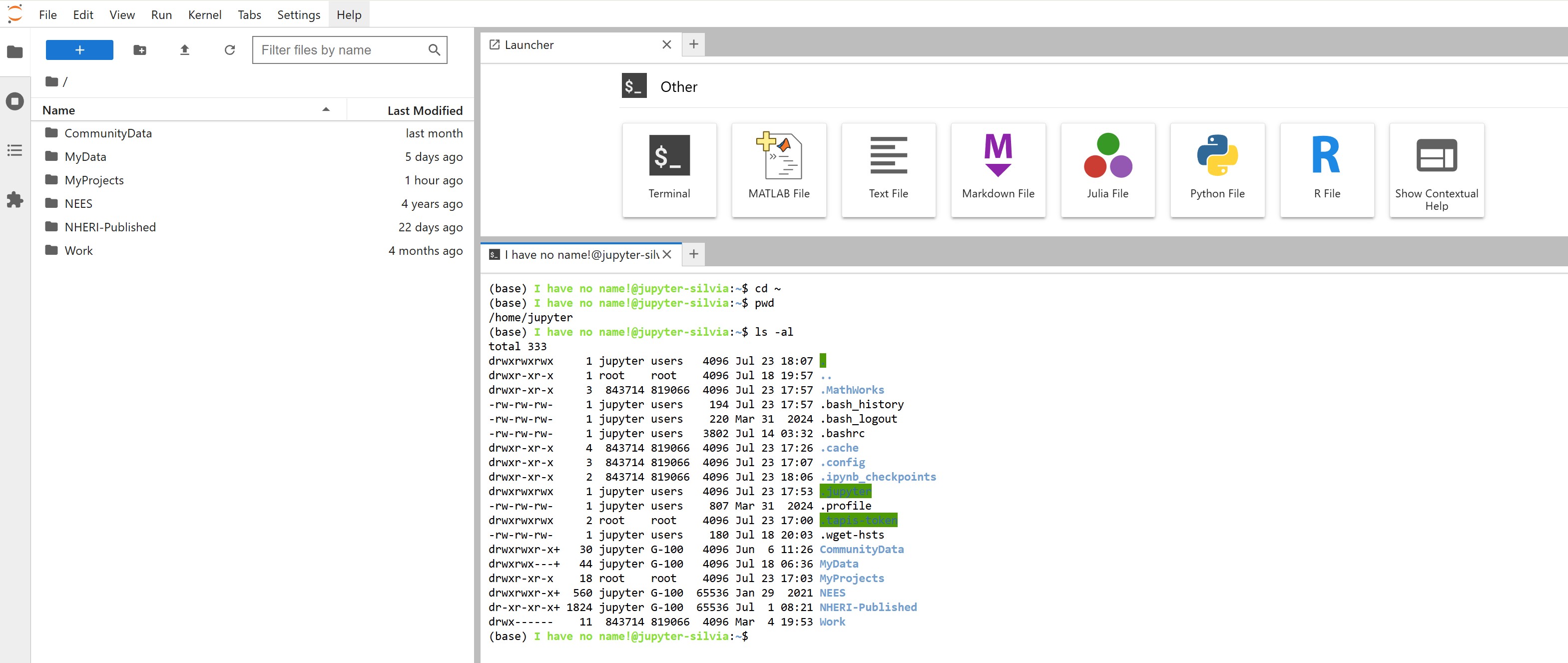
Terminal
A full Linux command-line interface (CLI) that allows users to run OpenSees (Tcl or Python) scripts directly, compile code, use Git, or execute batch-style workflows.
Provides real-time error messages, standard input/output handling, and access to the full Python and Unix toolchain.
Especially useful for:
Running OpenSees, OpenSeesMP, OpenSeesSP, or OpenSeesPy jobs at the command line
File manipulation and quick testing
Using tools like grep, awk, sed, and tar for advanced scripting
Console
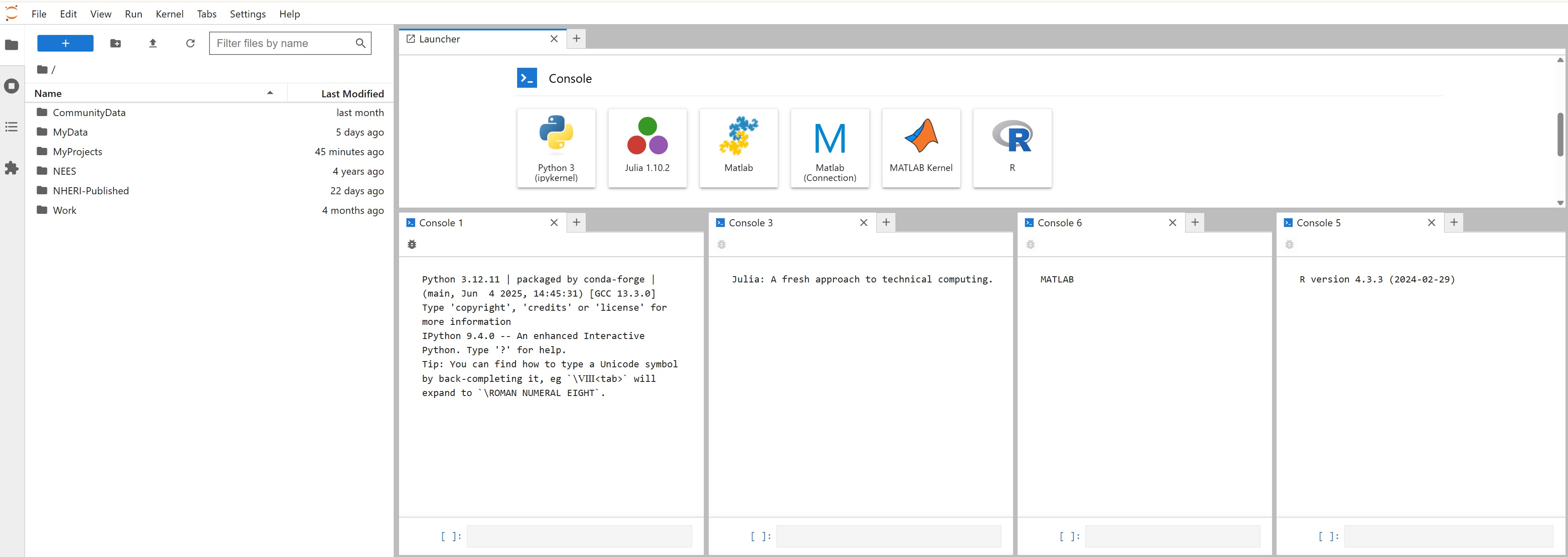
A standalone REPL (Read-Eval-Print Loop) environment for Python.
Allows you to test snippets of OpenSeesPy code without launching a full notebook.
Can also be used to execute full .py scripts.
Jupyter Hub supports Python like Julia, MATLAB, and R
Notebook Interface (Jupyter Notebooks)
Combines executable code, documentation, and visualizations in a single document.
Ideal for OpenSeesPy workflows, where users can iteratively run cells, plot results, and write notes alongside their code.
Great for pre- and post-processing, exploring parameter sweeps, and documenting research workflows.
Jupyter Hub supports Python like Julia, MATLAB, and R
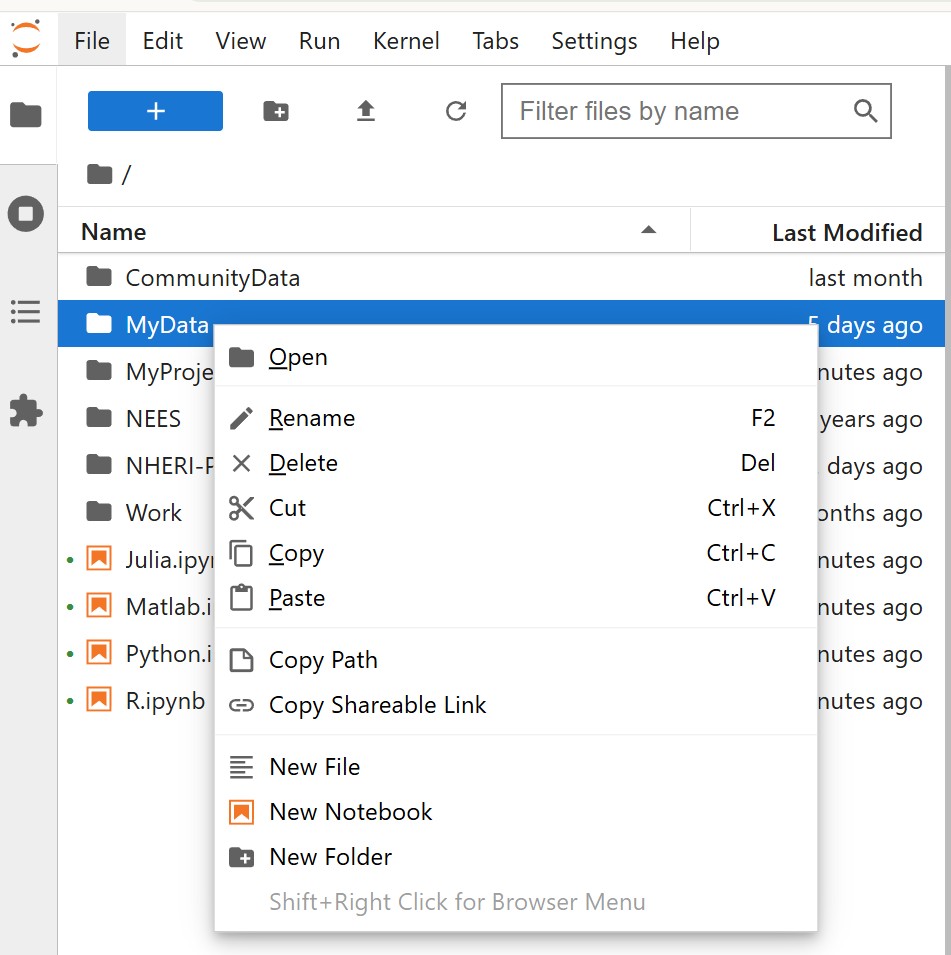
File Manager
Visual interface for navigating, organizing, renaming, and deleting files in your Jupyter workspace.
Drag-and-drop support for uploading or downloading files.
Makes it easy to keep your project folder tidy and to stage input/output files for HPC runs.
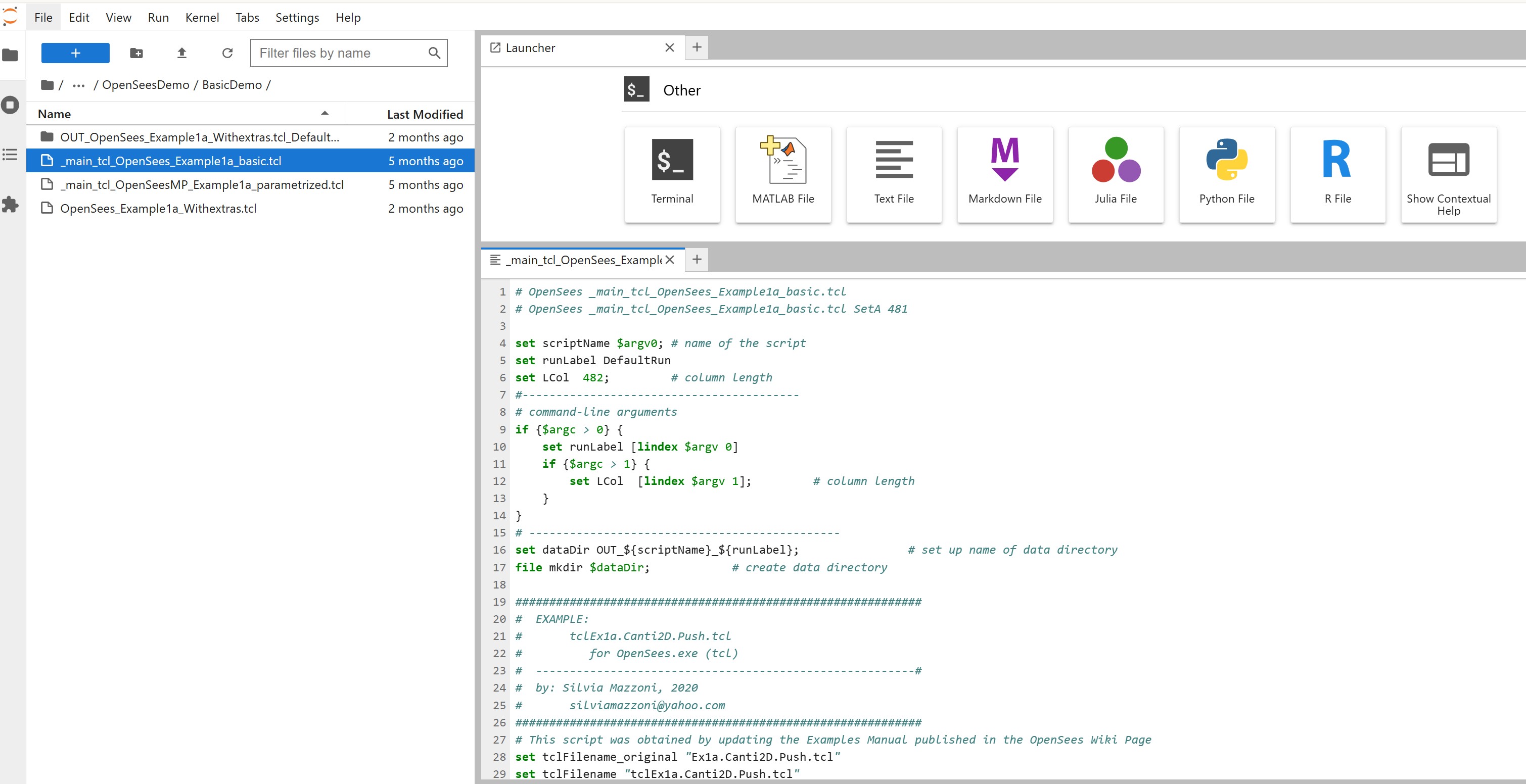
Text Editor (Code Editor)
Built-in lightweight code editor with syntax highlighting for Tcl, Python, JSON, and other formats.
Allows quick edits to scripts without switching to a notebook or terminal editor like vim.
Useful for:
Editing input scripts
Creating SLURM job files
Modifying metadata.json or app.json files when working with Tapis
The following screenshot is an “extreme” example of how you can use all of these tools symultaneously:
Summary#
The Jupyter Hub environment is your workbench for development, debugging, testing, and launching HPC jobs — all without leaving your browser.